GuidesLast updated 2 November 20266 min read
Notion as a daily planner: how to set it up and where it falls short
To use Notion as a daily planner, build one tasks database with a date and a status, add a Today view that shows what is due or overdue, and connect Notion Calendar when you want tasks on an hourly grid. It works, and if you already live in Notion it keeps everything in one place. The costs show up later: you build and maintain the system yourself, capturing a task on the phone takes several taps, and time blocking happens in a second app.
How to set up a daily planner in Notion
Skip the templates with 40 widgets. A planner you will still open in a month needs one database and three views.
- Create a Tasks database. A full-page table with five properties: Name; Date (turn on the end date and the time when a task has a slot); Status (Notion's status property: not started, in progress, done); Priority (a select with high, medium and low); and Minutes, a number for your estimate.
- Add an Inbox view. Filter: Date is empty. New tasks land here, so capturing never forces you to decide when.
- Add a Today view. Filter: Date is on or before today, and Status is not done. Sort by priority. Including overdue tasks means nothing drops out of sight just because its day passed.
- Add a Week view. A calendar layout of the same database, shown by week, so you can drag tasks between days.
- Add a daily page, if you want one. In a second database called Days, make a template with a linked Today view, a line for the one thing that matters and a short end-of-day checklist. Set it to repeat every weekday and Notion creates the page each morning.
- Connect Notion Calendar for hours. Notion's calendar layout shows days, not hours. Notion Calendar, a free separate app, shows your Google Calendar next to the Tasks database, and moving a task there changes its date and time in Notion.
Then, each morning: open Today, pick one to three tasks that matter, and give them a time in Notion Calendar. That is time blocking, split across two apps.
What Notion is great at
- Documents and wikis. Meeting notes, project briefs, reading notes and team handbooks, with pages inside pages. Few tools do this better.
- Databases for anything. A task list, a content calendar, a reading list or a small CRM are all the same kind of table, with relations between them and as many views as you want.
- Planning next to the material. A task can live on the same page as the brief it belongs to, which suits projects with a lot of writing.
- Teams. Shared workspaces, comments and permissions make it a natural home for what a team knows.
- Price. Free for one person. Plus is about $10 per member a month billed yearly and a little more billed monthly (check Notion's pricing page, it changes).
Where Notion struggles as a daily planner
None of these are bugs. They come from Notion being a blank canvas, which is exactly what makes it good at everything above.
- You build it. Properties, filters and views take an evening to set up, and every change in how you work means editing the system. Many people end up spending more time on the planner than on the plan.
- Maintenance drifts. Tasks without dates, statuses stuck on in progress, a Today view that quietly grows to 30 items. Nothing in Notion tells you the day does not fit.
- Capture on the phone is slow. Adding a task means opening the app, getting to the database, creating a page and setting the date and priority by hand. That is several taps more than typing one line, and the slower capture is, the more stays in your head.
- Time blocking needs a second app. The hourly grid lives in Notion Calendar, so planning the day means switching between two apps.
- Reminders are manual. You can add one to a date or with @remind, but you set them one task at a time, and they arrive in the same inbox as comments and mentions.
- Undone tasks stay put. Yesterday's unfinished tasks keep yesterday's date. A filter can surface them, but moving them is still editing dates.
Notion is a place to build a planner. If you enjoy building, that is the point. If you just want to plan, it is overhead.
If you stay with Notion, keep it small
- One tasks database. Never one per project; use a property for the project instead.
- Three views. Inbox, Today and Week. Delete any view you have not opened in two weeks.
- A total in the Today view. Turn on the sum at the bottom of the Minutes column. If today adds up to more than about 360 minutes (six hours) on a normal workday, move something before you start.
- Five minutes at the end of the day. Mark what got done and re-date what did not. The shutdown ritual guide walks through it.
- Capture one tap closer. Add the Tasks database to your favorites so it is the first thing you see in the phone app.
Notion and Superhive for daily planning
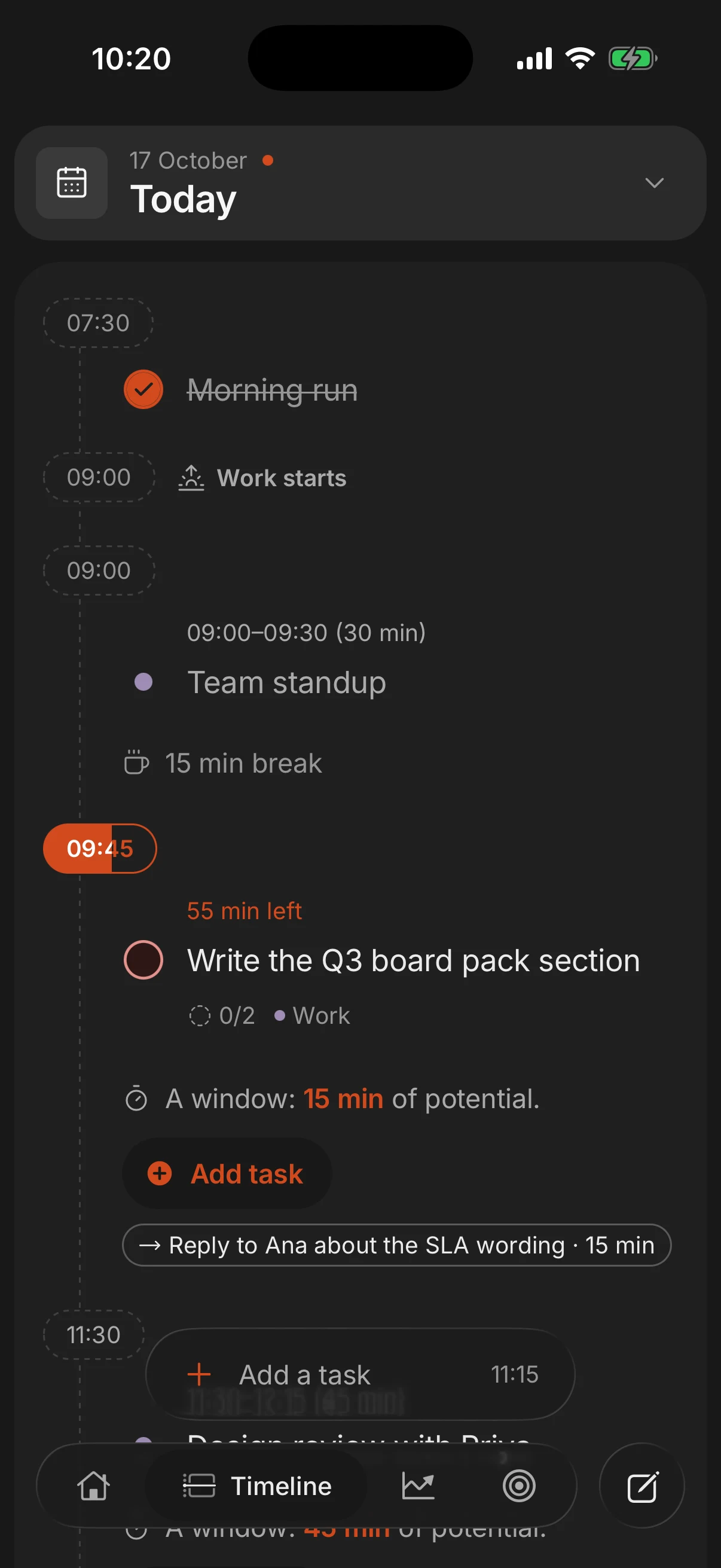
Superhive is a daily planner with Notion-like pages built in. It does far less than Notion overall and more of the daily part out of the box. Prices are approximate US prices; check each app's pricing page.
| What you need | Notion | Superhive |
|---|---|---|
| Setup | Build it or adapt a template | Ready to use, nothing to build |
| Capture on the phone | Open the database, add a page, set properties | One typed line; date, time, priority and goal are read from it |
| Plan by the hour | In Notion Calendar, a separate app | Built in: tasks land as blocks around your events |
| Unfinished tasks | Keep their old date until you move them | The daily shutdown rolls them to tomorrow |
| Goals | A database you design, with relations | Goals with milestones, a pace and their tasks |
| Docs and wikis | Excellent, with databases | Pages like Notion's, without databases |
| Price | Free for one person; Plus about $10 a month | Free; Pro $8.99 a year |
Superhive for the day, Notion for the docs
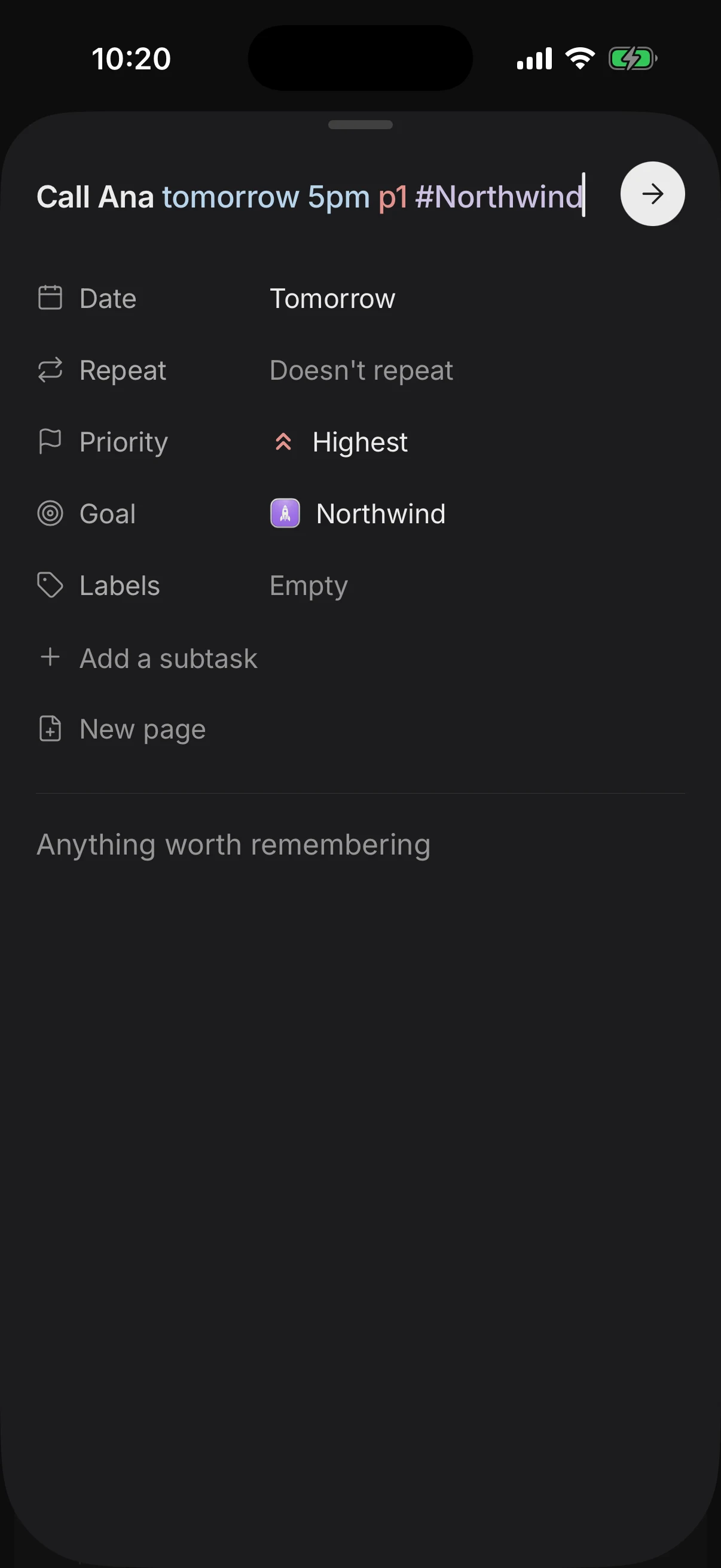
You do not need one tool for everything. A setup that works for many people who outgrow a Notion planner: keep Notion for documents, wikis and team work, and plan the day in an app built for it. In Superhive you type "Call Ana tomorrow 5pm p1 #Northwind" and get a task with a date, a time, a priority and a goal. Tasks with a length land on the day as blocks in the free time around your events, and the daily shutdown closes the day by rolling what is left to tomorrow. Quick notes have a home too: Superhive has its own pages, 5 on the free plan and unlimited on Pro, which also imports your Google Calendar.
Questions people ask
Is Notion good for daily planning?
It can be, if you enjoy building and maintaining your own system and already use Notion every day. If you want to open an app and plan in two minutes, a dedicated planner is faster, and you can keep Notion for documents.
How do I make a Today view in Notion?
In your tasks database, add a view filtered to Date is on or before today and Status is not done. Including overdue tasks keeps them from disappearing when their day passes.
Can you time block in Notion?
Not on an hourly grid inside Notion itself, whose calendar layout shows days and weeks. Notion Calendar, a free separate app, shows your tasks database next to your events by the hour.
Does Notion have reminders?
Yes, on a date property or with @remind in a page. You set them one task at a time, and they arrive as Notion notifications.
What is a good Notion alternative for planning your day?
For a day planned in time blocks and tied to goals, Superhive; for long task lists, Todoist or TickTick. The best planner apps guide compares them.
Keep reading
- How to plan your day: a 10-minute routine, step by stepPlan your day in 10 minutes: pick 3 tasks, estimate them and give each a time around what is fixed. With an example day and what to do when the plan breaks.
- Time blocking: how to plan your day in blocksTime blocking gives every task a start time and a length on your calendar. How to do it in 10 minutes a day, with an example day and the mistakes to avoid.
- The best daily planner apps in 2026, compared honestlySuperhive, Structured, Sunsama, Motion, Todoist, TickTick, Notion and Google Calendar compared: who each is for, what it does best, its catch and its price.
- How to break down goals into tasks you actually doBreak a goal into milestones, a weekly pace and one next task with a day and a time. A step-by-step method, a worked example and why most goals stall.