GuidesLast updated 2 November 20267 min read
Time blocking in Google Calendar: a step-by-step guide
To time block in Google Calendar, create an event for each piece of work in the slot where you will do it, named with a verb and sized to your estimate. Give each type of work its own color, and when you want a block you can tick off, create it as a task: since late 2025 a Google Tasks task can have a start time and a length on the grid. It takes about 10 minutes a day; what Google Calendar leaves to you is choosing the work and re-planning when the day changes.
Why Google Calendar works for time blocking
Time blocking means giving each task a start time and a length instead of keeping a list and hoping. Google Calendar is where most people try it first, for good reasons: it is free, it already holds the meetings you have to plan around, it syncs between your phone and your computer, and on a work account a block tells colleagues you are busy before they book over it.
It is not a task manager, though. Time blocking in it is the habit of turning the few tasks that matter today into appointments with yourself, and the setup below makes that habit take minutes.
Set it up once: calendars, colors and defaults
- Create a calendar for your blocks. On a computer, open Google Calendar, click the plus next to Other calendars and choose Create new calendar. Call it "Blocks". You can then hide every block with one click and give blocks their own alerts. (On a work account, read the note on busy time below first.)
- Choose one color per type of work. Four is plenty: blue for deep work, green for meetings, yellow for admin and messages, purple for personal. At a glance, the week then shows whether it holds any deep work at all.
- Set the default event length. In Settings, under Event settings, set Default duration to your usual block, such as 60 minutes, so every block starts at the right size.
- Give the blocks calendar its own alert. In that calendar's settings, add a notification at the start time or 5 minutes before. The alert is what tells you to switch to the next block.
- Show your tasks. Under My calendars, tick Tasks. Any Google Tasks task with a date now appears on the grid next to your events.
How to time block your day in Google Calendar
- Open the day or week view the evening before or first thing in the morning (press d or w on a computer). Your meetings are already there; what is left is the time you actually have.
- Pick one to three tasks that matter today. Everything else stays on your list, not on the calendar.
- Drag across an empty slot to create a block, or press c. Name it with a verb and an object, "Draft section 2 of the proposal" rather than "Proposal", put it on the Blocks calendar and give it its color.
- Size each block to your estimate plus a quarter: a one-hour task gets 75 minutes. Most people underestimate.
- Put the hardest block in your best hours, which for most people is the first half of the morning.
- Batch the small stuff into one or two blocks of 30 minutes: email, messages, forms.
- Leave about 20 percent of the day empty for whatever runs over.
- Make routines, like a daily email block or a Friday review, recurring events.
- When a block does not happen, drag it to the next free slot or to tomorrow right away, so the calendar keeps telling the truth.
Block the work that matters and leave the rest on the list. A calendar with every task on it is full by Monday at noon.
How to add tasks to Google Calendar
Google Tasks is built into Google Calendar, and since an update in November 2025 a task can take up time on the grid instead of only sitting at the top of the day. That is the closest Google gets to a time-blocked to-do list: a block you can tick off.
- In the day or week view, click an empty slot and switch the new item from Event to Task.
- Type the task, then set the date, the start time and how long you plan to spend on it. Add a description, or a deadline if it has one.
- Save. The task shows on the calendar as a block and in your task list, and it keeps reminding you until you mark it done.
- To give a task you already have a slot, open it and choose Add time.
Three limits, from Google's own help page: repeating tasks cannot have an end time, so routines work better as recurring events; a task with subtasks cannot repeat; and a task without a time sends its reminder at 9 a.m. Beyond that, Google Tasks is a plain list with no priorities, labels or goals.
Focus time and working hours on work accounts
If your Google account comes from work or school, Google Calendar has features made for this. Which ones you get depends on your organization's plan.
- Focus time is a type of block you create from the day or week view on a computer. It can decline new meetings, or all meetings, that land on it, and mute Google Chat while it lasts. Google lists it for the Business Standard and Plus, Enterprise, Education and Nonprofits plans (help page), so not for personal Gmail accounts or Business Starter.
- Working hours show anyone who tries to book you outside them that you are not available. You set them once, from a computer, in Settings.
- Busy time comes from your main calendar. When colleagues look for a time to meet, Google generally checks your primary calendar, not the extra ones you created. On a work account, put blocks that must stay protected on your main calendar, or make them Focus time.
On a personal account, an ordinary event set to Busy does the same job, minus the automatic declines.
An example day in Google Calendar
A realistic day with one big piece of work, a team meeting and a client call: six hours planned, lunch on the calendar and an hour left empty.
| Time | Block | Calendar and color |
|---|---|---|
| 8:45 to 9:00 | Plan the day | Blocks, yellow |
| 9:00 to 10:45 | Draft section 2 of the proposal | Blocks, blue |
| 10:45 to 11:15 | Email and messages | Blocks, yellow |
| 11:15 to 12:00 | Weekly team meeting | Main, green |
| 12:00 to 13:00 | Lunch | Main, purple |
| 13:00 to 14:00 | Check the budget numbers | Blocks, blue |
| 14:00 to 14:30 | Client call | Main, green |
| 14:30 to 15:30 | Nothing: buffer | Left empty |
| 15:30 to 16:30 | Invoices and forms | Blocks, yellow |
| 16:30 to 16:45 | Move what is left to tomorrow | Blocks, yellow |
Where Google Calendar falls short
Google Calendar is a good place to keep blocks and a weak place to plan them. After a few weeks, most people hit the same four limits.
- Tasks and events still live apart. Tasks can now take time on the grid, but the list behind them has no priorities or goals, so deciding what deserves a block still happens in your head.
- Re-planning is dragging. When a meeting moves or a block runs over, every block after it has to be moved by hand. On a phone that is slow enough that most people stop, and the calendar stops matching the day.
- Undone work stays behind. A block that did not happen sits in the past, and an unfinished task waits in a pending list until you give it a new slot.
- Free time is something you count. The calendar shows what is booked, not how much room is left for the three tasks you still have.
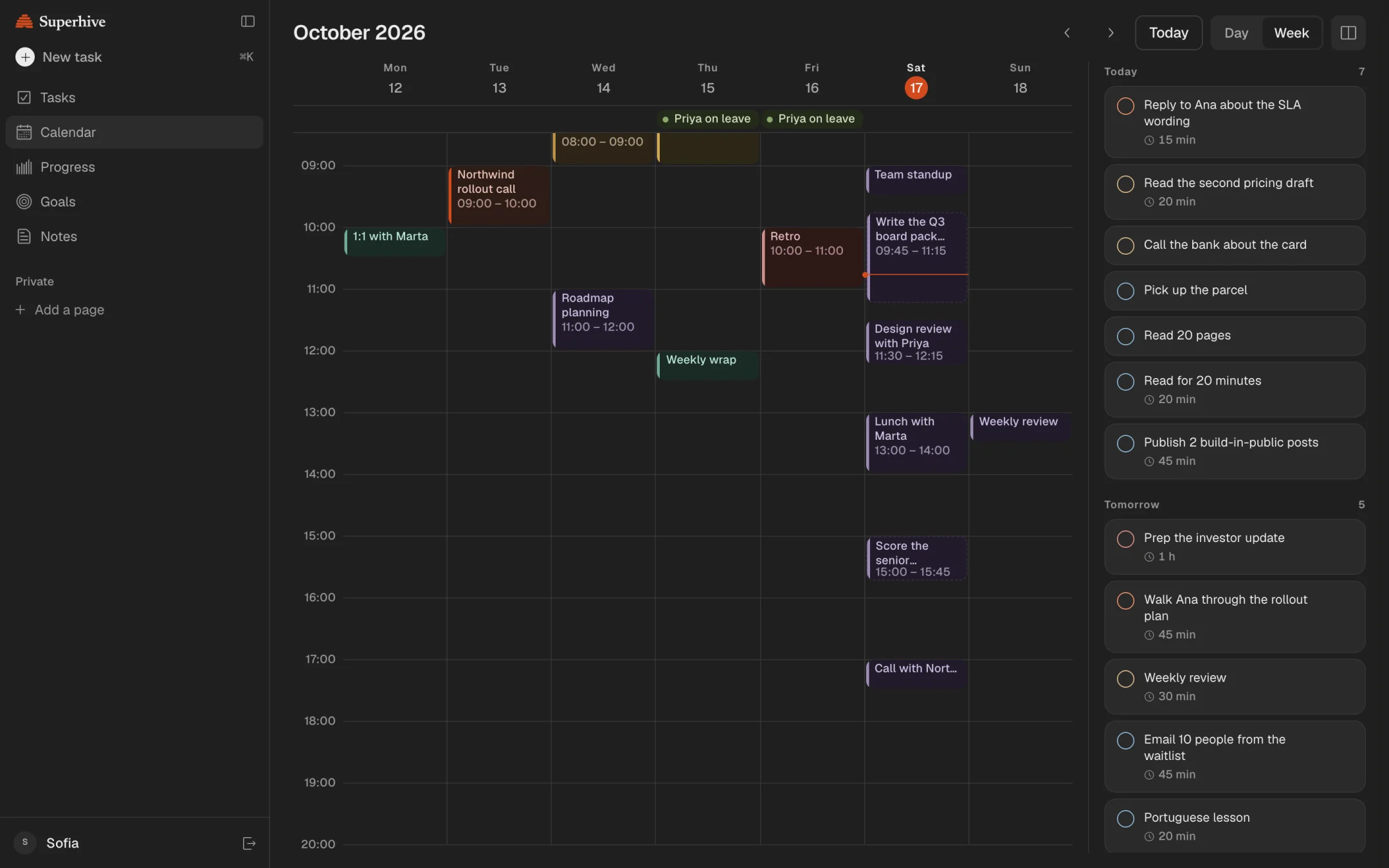
Superhive is a daily planner built around those gaps. Give a task a length and on the day view it lands as a block in the free time around your events, so you see whether the day fits before it starts. With Pro, it imports your Google Calendar events and writes scheduled tasks back to Google Calendar as blocks as long as the task, so Google Calendar still shows your whole day. At the end of the day, the daily shutdown rolls whatever did not get done to tomorrow instead of leaving it in the past.
Questions people ask
Can you time block in Google Calendar for free?
Yes. Events, colors, extra calendars and Google Tasks are all free on a personal Google account. Focus time and working hours need a work or school account on most Google Workspace plans.
How do I add a task to Google Calendar at a specific time?
Click an empty slot, switch from Event to Task, and set the date, the start time and how long you plan to spend on it. Repeating tasks cannot have an end time, so make routines a recurring event instead.
What colors should I use for time blocking?
One color per type of work, and no more than four or five: for example blue for deep work, green for meetings, yellow for admin and purple for personal. The point is to see at a glance how much of the week is deep work.
Should time blocks go on a separate calendar?
On a personal account it helps, because you can hide all blocks at once and give them their own alerts. On a work account, keep blocks that must be protected on your main calendar, since that is usually the one colleagues see when they look for a time.
Does Google Calendar have a time blocking feature?
Not by that name. Work and school accounts on most Google Workspace plans get Focus time, which declines meetings during the block; everyone else time blocks with ordinary events or tasks with a time.
Keep reading
- Time blocking: how to plan your day in blocksTime blocking gives every task a start time and a length on your calendar. How to do it in 10 minutes a day, with an example day and the mistakes to avoid.
- How to plan your day: a 10-minute routine, step by stepPlan your day in 10 minutes: pick 3 tasks, estimate them and give each a time around what is fixed. With an example day and what to do when the plan breaks.
- Shutdown ritual: how to end the workday and stop thinking about workA shutdown ritual is a 10-minute routine that closes your workday. The steps, an example and why it helps you stop thinking about work in the evening.
- The best daily planner apps in 2026, compared honestlySuperhive, Structured, Sunsama, Motion, Todoist, TickTick, Notion and Google Calendar compared: who each is for, what it does best, its catch and its price.