GuidesLast updated 2 November 20267 min read
How to block distracting apps on your iPhone to focus
To block apps on your iPhone for free, use Screen Time: give the apps that pull you in a small daily Time Allowance (called App Limits before iOS 27), or a schedule that keeps them closed during work hours, and add a Focus that silences their notifications and hides them from your Home Screen. The catch is that, by default, a Screen Time limit can be ignored once you reach it. If that is how you keep getting back in, the next step is a dedicated blocker that ties the block to a focus session and makes it harder to skip.
Decide what to block before you block it
Most people need to block three to five apps, not twenty. To find yours, open Settings > Screen Time and look at your most used apps and your pickups: the apps you open first after picking up the phone are the ones to target. Then decide three things.
- When, not just what. Blocking social media during your working morning is a plan you can keep. Blocking it forever usually lasts until Friday.
- What must stay open. Phone, Messages, Maps, your calendar and the apps you work in. Blocking too much is the fastest way to end up switching everything off.
- The website too. If Instagram is blocked but Safari is not, you will end up on instagram.com. On iOS 27 a Time Allowance also covers the website an app declares as its own, and many dedicated blockers can block sites as well.
Option 1: a daily time limit with Screen Time
A limit gives a group of apps a daily budget, say 20 minutes of social media. Once it is used up, those apps show a time limit screen when you open them, until the limit resets at midnight. On iOS 27 the feature is called Time Allowances:
- Open Settings, tap Screen Time and turn on App & Website Activity if you are asked to.
- Tap Time Allowances, then Manage Categories, and add a category. Entertainment, Games and Social Media are built in; a custom category lets you pick the exact apps.
- Tap the category and set its allowance with the slider, for example 20 minutes a day.
On iOS 26 and earlier the same thing is called App Limits: Settings > Screen Time > App Limits > Add Limit, choose a category or open one to pick single apps, tap Next and set the time. Not sure which version you have? It is under Settings > General > About. Apple's Screen Time guide has the full detail for each version.
Option 2: keep apps closed during set hours
A limit is a budget; a schedule is a curfew. It suits you if social media at lunch is fine but at 10:00 on a workday it is not. On iOS 27 this is Screen Time Schedule:
- Go to Settings > Screen Time > Screen Time Schedule and turn on Schedule.
- Tap Add Schedule and choose the days, for example Monday to Friday.
- Tap a time window to name it and set its start and end: "Deep work", 9:00 to 12:00.
- Choose which Time Allowance categories are available in that window. Leave Social Media and Entertainment out, and those apps stay closed all morning.
- Open Settings > Screen Time > Always Allowed and check that the apps and people you might need in an emergency are on it.
On iOS 26 and earlier the equivalent is Downtime: Settings > Screen Time > Downtime, turn on Scheduled and set the hours. During downtime only calls, messages and the apps you allow stay available.
Option 3: a Focus that silences apps and hides them
A Focus does not block anything, but it removes the two cues that start most phone checks: the notification and the icon. Set one up for work:
- Open Settings > Focus, tap the plus button and choose Custom, or use the built-in Work Focus.
- Under Apps, allow notifications only from the apps you need for work. The rest are silenced until the Focus ends.
- Under People, allow the few people who must be able to reach you.
- Choose a Home Screen page for the Focus with only your work apps on it. While the Focus is on, the other pages are hidden.
- Tap Add Schedule to turn it on at a set time, at a place such as your office, or when you open a certain app.
The weakness is that hidden apps are still installed: they open from the App Library or a quick search. A Focus works best together with option 1 or 2. The Focus removes the cue, Screen Time adds the block.
Why the built-in limits are easy to skip
Apple's own documentation says it plainly: by default, Screen Time limits can be ignored once they are reached. The time limit screen has an Ignore Limit button, and at 11 at night with your thumb on autopilot, one tap is not much of a barrier. Limits also run on the clock, not on what you are doing: a daily allowance cannot tell a work session from a lazy Sunday.
A Screen Time passcode closes most of the gap. Set one in Settings > Screen Time (the option is called Lock Screen Time Settings), and getting more time asks for the code. On iOS 26 and earlier, also turn on Block at Downtime so apps cannot be opened during downtime. The obvious problem is that you know your own passcode. The usual fix is to have someone you trust type in a code you do not know, which also means asking them whenever you want to change a setting.
Remove the cue first (notifications and icons), then add a block you cannot skip on autopilot. Willpower is the last line of defense, not the first.
What dedicated app blockers add
On iPhone, an app cannot block other apps on its own. Third-party blockers use Apple's Screen Time framework, which is why they ask for Screen Time access when you set them up and why their block screens look alike; a few also use Shortcuts automations to add a pause before an app opens. What they add is the logic around the block:
- Blocks you start with one tap, for 30 minutes or two hours, instead of editing a daily limit.
- Several schedules with their own app lists: social media off in the morning, games off on school nights.
- Friction instead of a button: a wait, a breath or a typed phrase before a blocked app opens, which is often enough to interrupt the habit.
- Stats on how often you reached for a blocked app.
Opal, one sec, Jomo, ScreenZen and Freedom are well-known examples. Features and prices range from free to monthly subscriptions and change often, so check the current version before you commit. None of them is unbreakable: turning off an app's Screen Time access, or deleting it, ends its blocks. The point is not a wall. It is one deliberate step between the impulse and the app.
Blocking apps from your planner with Superhive
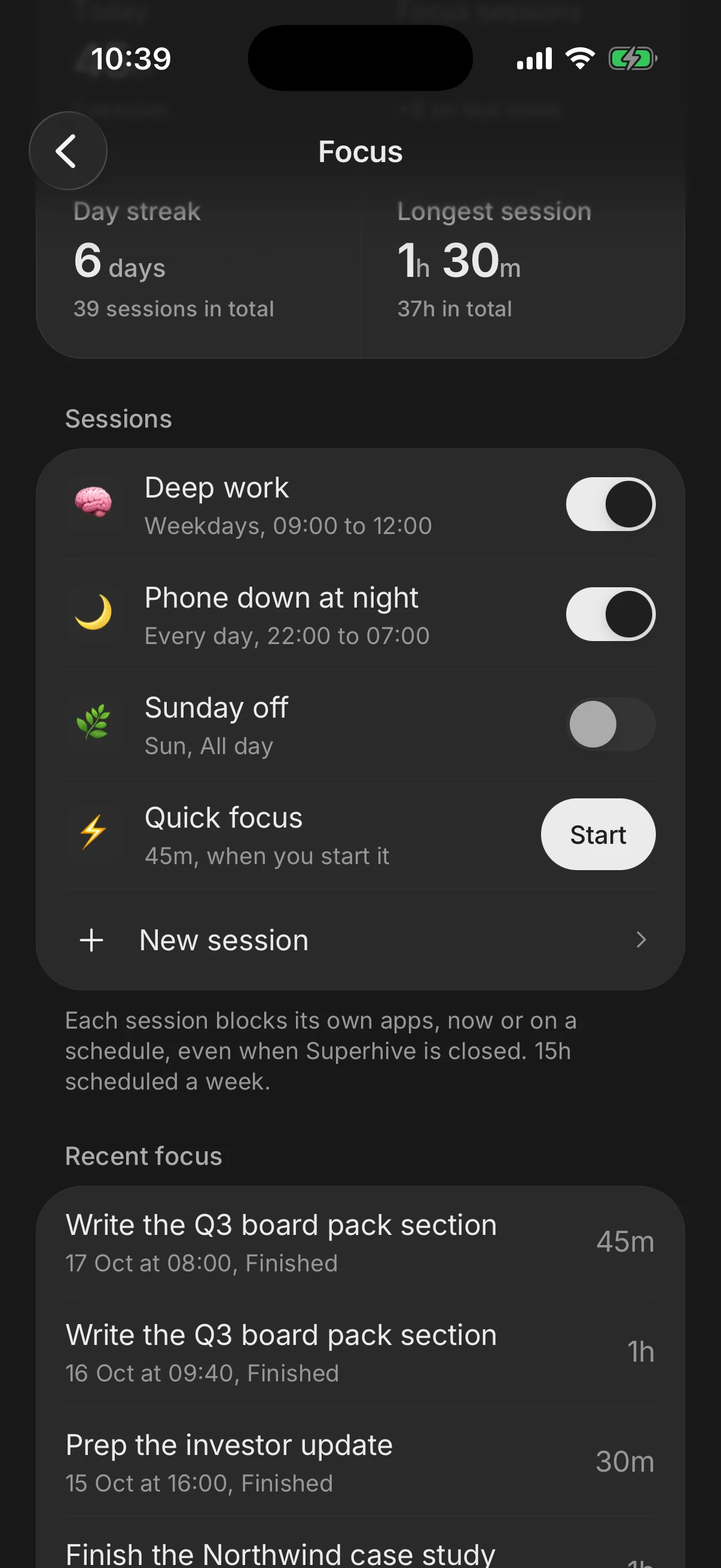
Superhive includes a blocker of this kind, called Super focus, built on Apple's Screen Time. You pick the apps; they stay blocked while you run a focus session on a task, and you can also set sessions that block them right now for a set time or on a schedule, such as weekdays from 9:00 to 12:00. Because it lives in your planner, the block starts with the task you planned for that hour instead of in a separate app. It is part of Pro and works on iPhone only, and like any Screen Time blocker it can be switched off by someone determined to get back in.
Questions people ask
Can you block apps on iPhone without Screen Time?
Not really. Apple only lets apps restrict other apps through Screen Time, so third-party blockers rely on it too. Without it you can hide an app or lock it behind Face ID (touch and hold the icon, then Require Face ID), but that adds a step rather than a block.
How do I get rid of Ignore Limit in Screen Time?
Set a Screen Time passcode, ideally one chosen by someone else. With a passcode, getting more time after a limit asks for the code instead of a single tap.
Does a Focus mode block apps on iPhone?
No. A Focus silences notifications and can hide Home Screen pages, but the apps still open from the App Library or search. Pair it with a Time Allowance or a schedule for a real block.
Is there a free app blocker for iPhone?
Yes: Screen Time is free, built into every iPhone and covers daily limits and schedules. Some dedicated blockers also offer a free tier; compare what it includes before paying.
Can I block apps on a schedule on iPhone?
Yes. Use Screen Time Schedule on iOS 27, or Downtime on earlier versions, for fixed hours, and a Focus with a schedule to silence and hide apps at the same time. Dedicated blockers add schedules with a different app list for each.
Does blocking apps actually help you focus?
It removes the easiest exit from hard work, which is often enough. It does not decide what to work on, so pair it with a plan for the hour, such as a time-blocked day or a few Pomodoro rounds.
Keep reading
- The Pomodoro technique: how it works and who it suitsThe Pomodoro technique: 25 minutes on one task, a 5-minute break, a longer one after four. How to do it, the 50/10 and 90-minute variations, and who it suits.
- Time blocking: how to plan your day in blocksTime blocking gives every task a start time and a length on your calendar. How to do it in 10 minutes a day, with an example day and the mistakes to avoid.
- How to plan your day with ADHD, and what to look for in a plannerHow to plan a day with ADHD: make time visible, get everything out of your head, plan short blocks, set alerts before transitions and roll over what is left.